

Using the desktop app
- Download and install the Zo desktop app for Mac or Windows
- Open the app and sign in to your Zo account
- Click Sync > Add Folder in the menu bar (or press ⇧⌘A on Mac)
- Choose a folder on your computer to sync with your Zo workspace
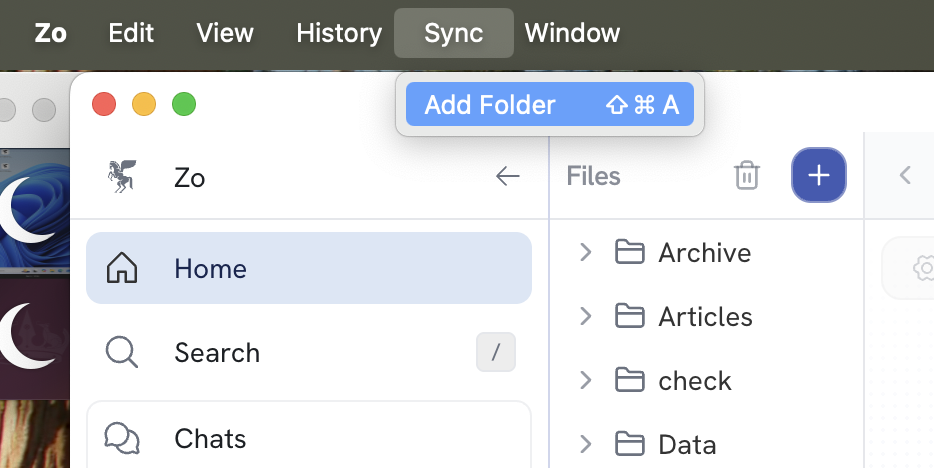
Adding a folder to sync