> ## Documentation Index
> Fetch the complete documentation index at: https://docs.zocomputer.com/llms.txt
> Use this file to discover all available pages before exploring further.
# Sync files
> How to sync files from another computer to your Zo
The Zo desktop app includes built-in file syncing. Any folder you choose on your computer will stay in sync with your Zo workspace.
# Using the desktop app
1. Download and install the Zo desktop app for [Mac](https://github.com/zocomputer/Zo/releases/latest/download/Zo.dmg) or [Windows](https://github.com/zocomputer/Zo/releases/latest/download/Zo-Setup.exe)
2. Open the app and sign in to your Zo account
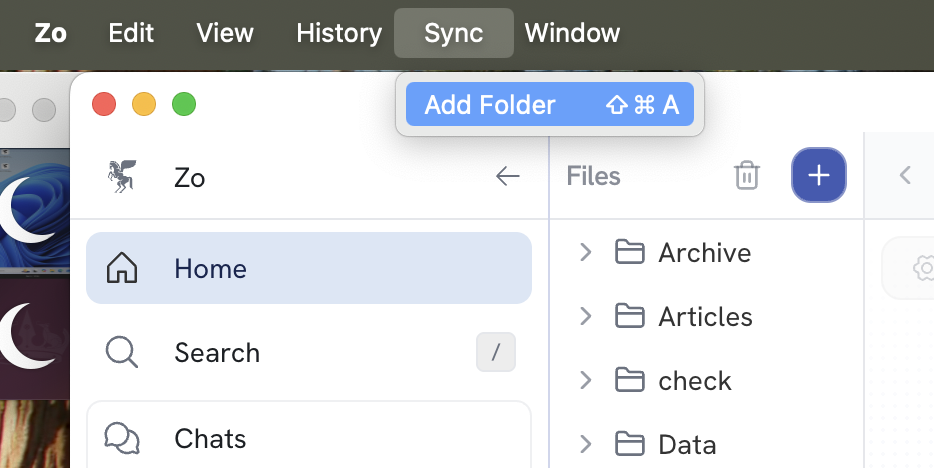
3. Click **Sync > Add Folder** in the menu bar (or press ⇧⌘A on Mac)
4. Choose a folder on your computer to sync with your Zo workspace
 Changes made on either side will automatically sync to the other.