> ## Documentation Index
> Fetch the complete documentation index at: https://docs.zocomputer.com/llms.txt
> Use this file to discover all available pages before exploring further.
# Connect GitHub
> How to connect your GitHub account to Zo
[GitHub](https://github.com) is a popular service for hosting and collaborating on software projects. The [GitHub CLI](https://docs.github.com/en/github-cli/github-cli/quickstart) comes pre-installed on your Zo and is the easiest way to connect to GitHub.
# 1. Create a new personal access token
To authenticate the GitHub CLI, first [Create a new personal access token (classic)](https://github.com/settings/tokens/new).
You must select `repo`, `read:org`, and `gist` (and can select additional permissions if you need these on your Zo).
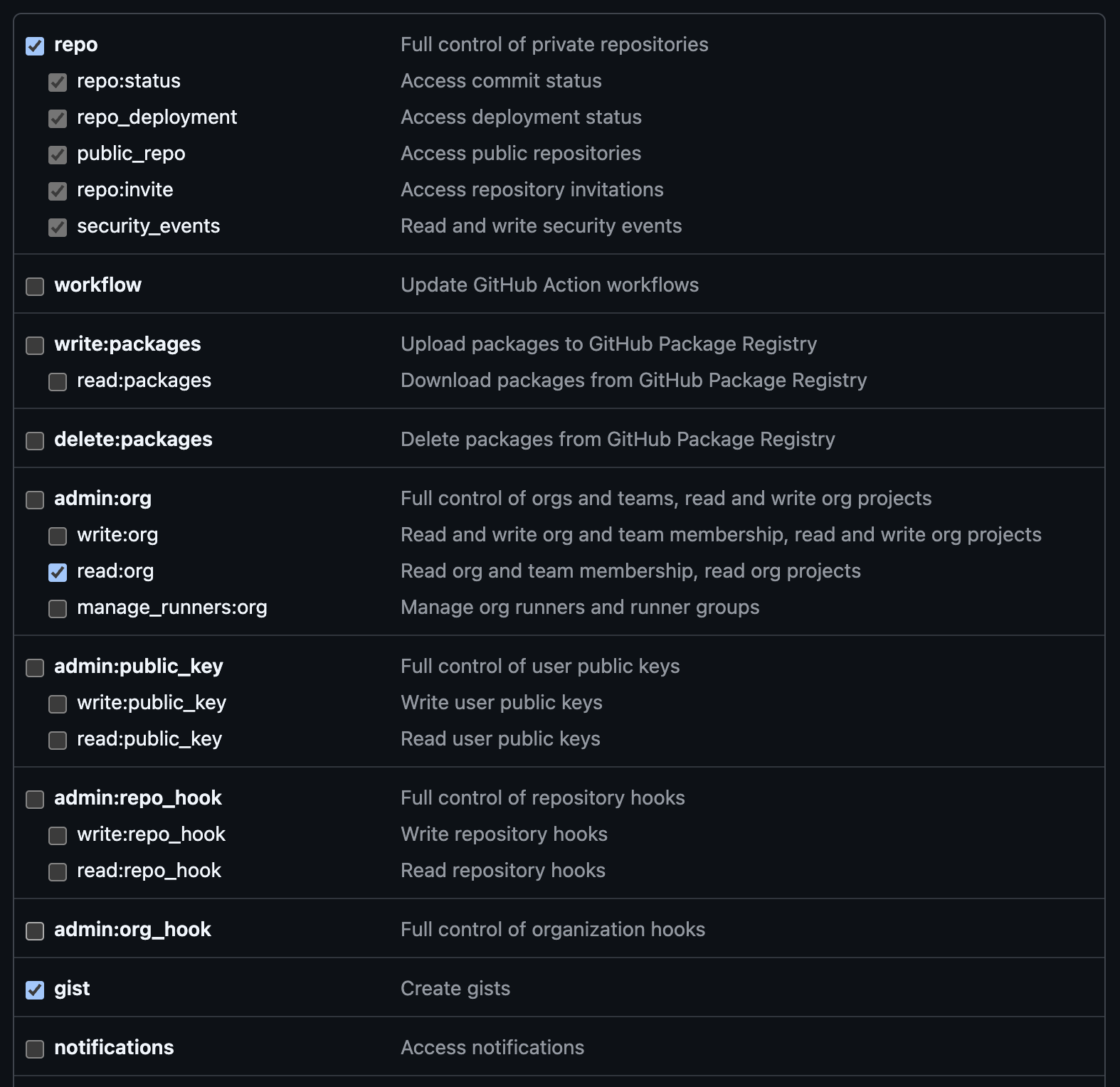 Reference: [`gh auth login`](https://cli.github.com/manual/gh_auth_login).
# 2. Authenticate the GitHub CLI
After creating your personal access token, authenticate the GitHub CLI by running the following command in your Zo application's terminal:
```bash theme={null}
gh auth login --with-token
```
That's it! You (and your Zo) can now use the GitHub CLI to work with your code and automations on GitHub. To learn more about what the GitHub CLI can do, check out the [manual](https://cli.github.com/manual/).
Reference: [`gh auth login`](https://cli.github.com/manual/gh_auth_login).
# 2. Authenticate the GitHub CLI
After creating your personal access token, authenticate the GitHub CLI by running the following command in your Zo application's terminal:
```bash theme={null}
gh auth login --with-token
```
That's it! You (and your Zo) can now use the GitHub CLI to work with your code and automations on GitHub. To learn more about what the GitHub CLI can do, check out the [manual](https://cli.github.com/manual/).