> ## Documentation Index
> Fetch the complete documentation index at: https://docs.zocomputer.com/llms.txt
> Use this file to discover all available pages before exploring further.
# Desktop app
> Download Zo – a cloud computer, on your desktop.
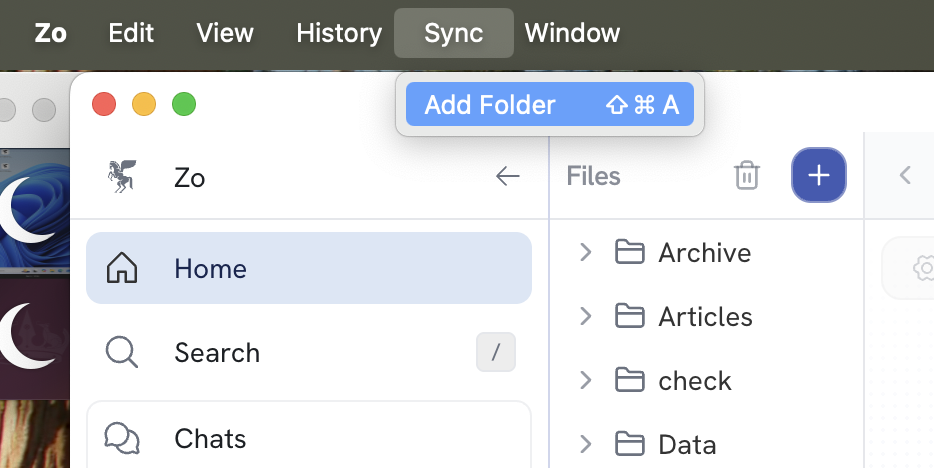
Zo's desktop apps include all the same functionality as the web app – plus the ability to [sync files](/sync-files) between your computer and your Zo workspace.
### Download
* [Mac](https://github.com/zocomputer/Zo/releases/latest/download/Zo.dmg)
* [Windows](https://github.com/zocomputer/Zo/releases/latest/download/Zo-Setup.exe)
Windows may display a SmartScreen warning saying the app is unrecognized.
Click **More info** → **Run anyway** to proceed.
* Linux ([.deb, x64](https://github.com/zocomputer/Zo/releases/latest/download/Zo.deb) · [.deb, arm64](https://github.com/zocomputer/Zo/releases/latest/download/Zo-arm64.deb))
The Linux app ships as a Debian/Ubuntu `.deb` package. Install it with
`sudo apt install ./Zo.deb` (or your distro's package manager).
### Syncing files
The Zo desktop app includes built-in [file syncing](/sync-files). Any folder you choose on your computer will stay in sync with your Zo workspace.