> ## Documentation Index
> Fetch the complete documentation index at: https://docs.zocomputer.com/llms.txt
> Use this file to discover all available pages before exploring further.
# Codex
> Use your OpenAI Codex subscription with Zo
[Codex](https://github.com/openai/codex) is OpenAI's agentic coding tool, included with [Plus and Pro plans](https://chatgpt.com/pricing). If you have a subscription, you can use it as an AI provider instead of Zo's built-in credits.
## Setup
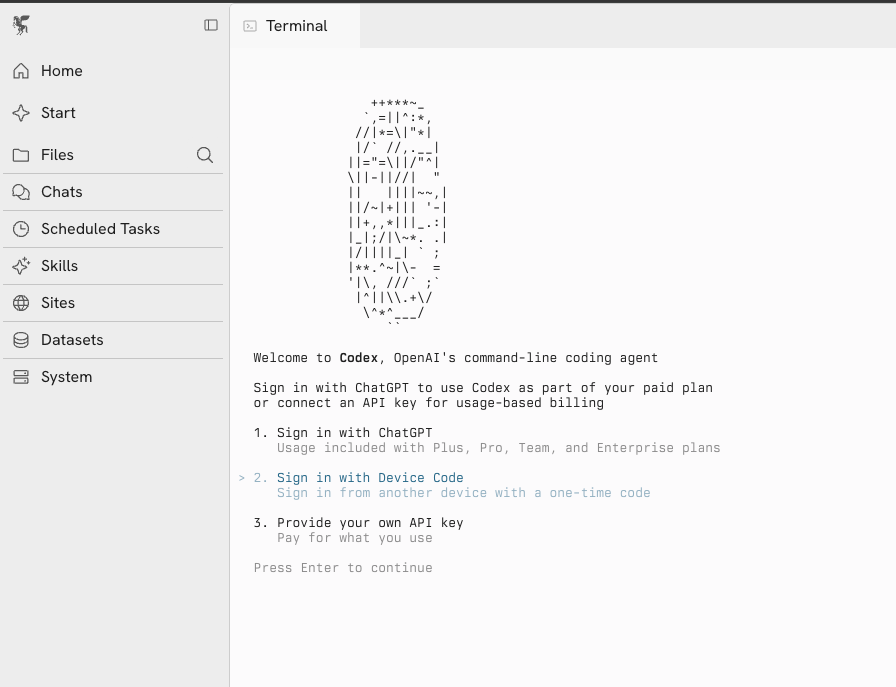
1. Open the terminal on your Zo and run `codex` to start the login flow
2. Select **Sign in with Device Code**
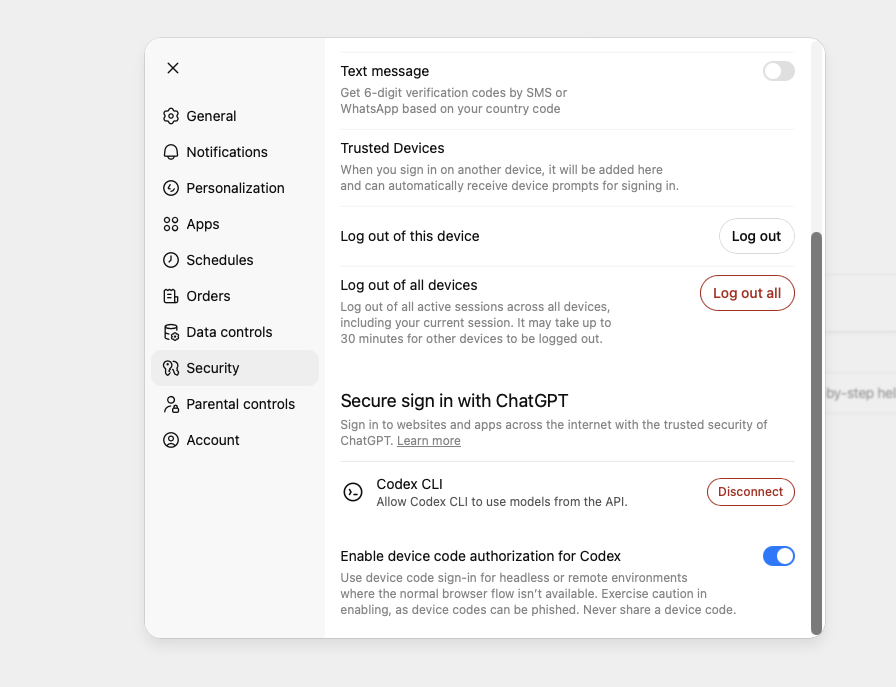
 3. You may need to enable device code authorization first in your ChatGPT account. Go to [**Settings > Security**](https://chatgpt.com/#settings/Security) and toggle on **Enable device code authorization for Codex**.
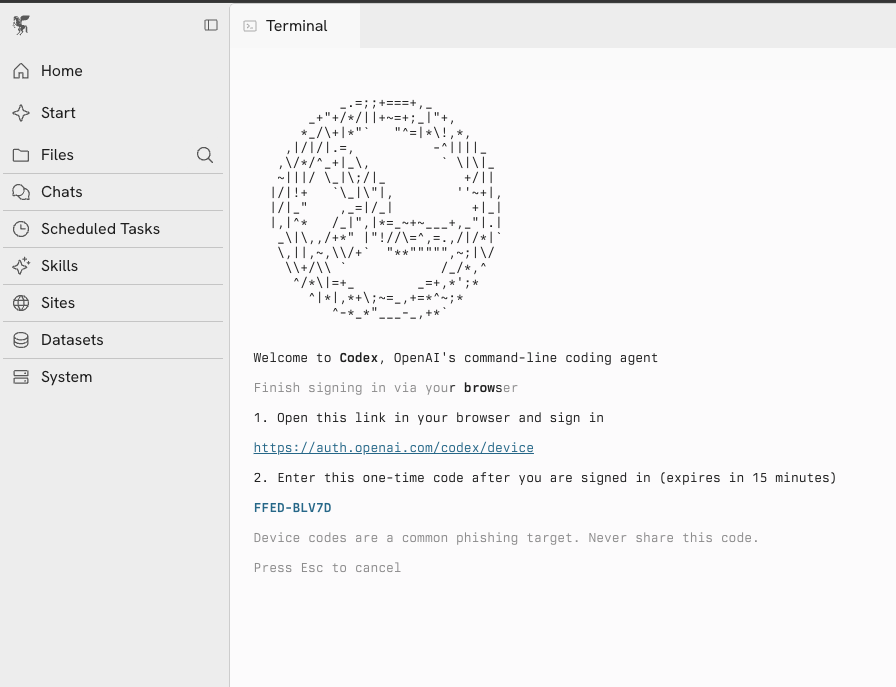
 4. Codex will display a URL and a one-time code. Open the URL in your browser and enter the code to complete authentication.
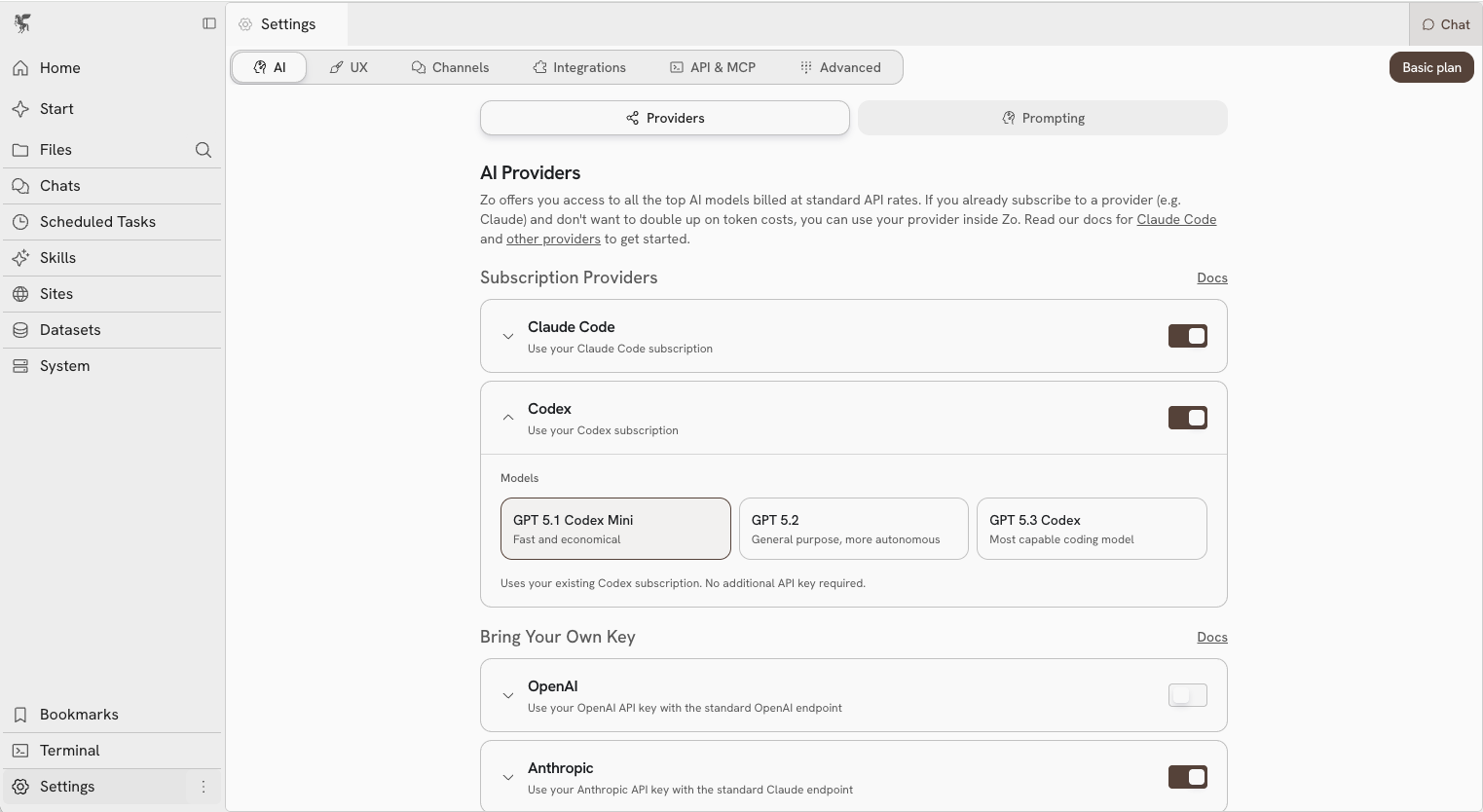
 5. Go to **Settings > AI Providers** and enable **Codex**
6. Select your preferred model
5. Go to **Settings > AI Providers** and enable **Codex**
6. Select your preferred model
 7. Select "Codex" from the model picker in chat and you're set